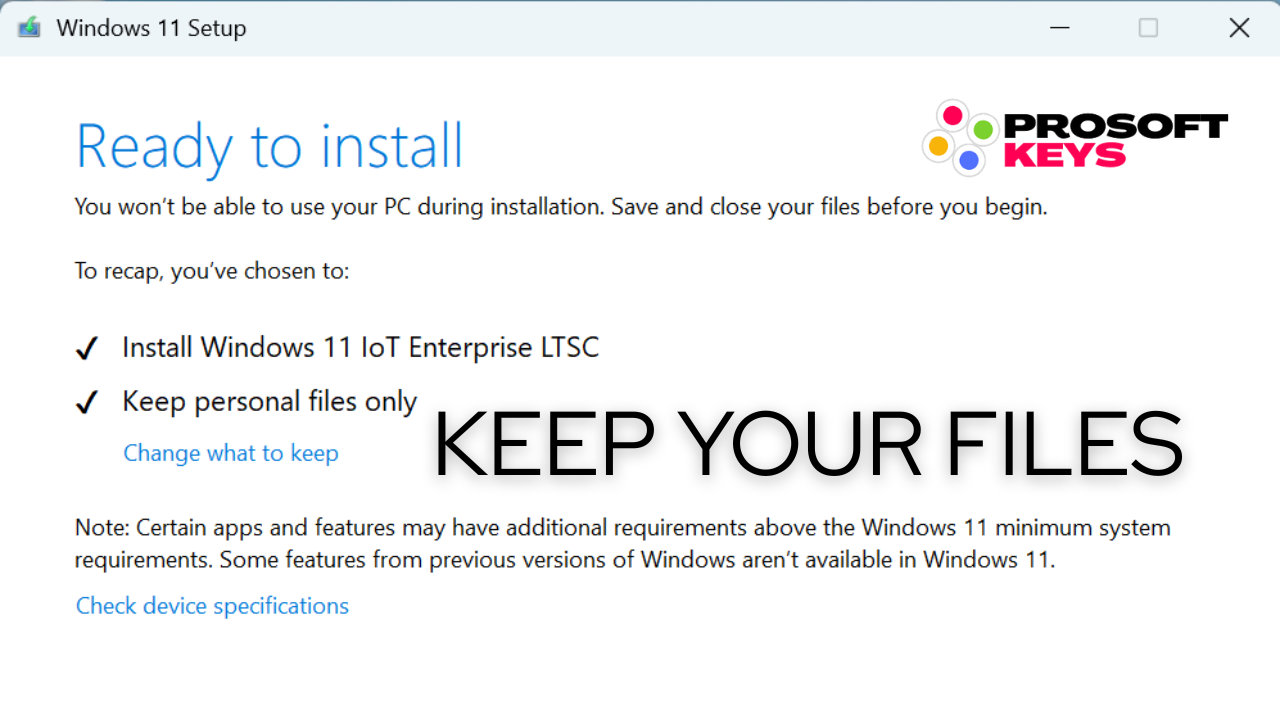
Convert Windows 11 Pro to IoT LTSC 2024: Keep Your Files
Step-by-step guide to upgrade Windows 11 Pro to Windows 11 IoT Enterprise LTSC 2024 while preserving your personal files
What Microsoft Doesn't Tell You
Official documentation says LTSC requires a clean install. We discovered a working method that keeps your files intact.
The Breakthrough
Yes, you can convert Windows 11 Pro to Windows 11 IoT Enterprise LTSC 2024 without losing your personal files. Using the in-place upgrade method with an official LTSC ISO, your Documents, Pictures, Desktop, and other user files transfer automatically. Apps and settings will need to be reinstalled, but your data stays safe.
Time required: 1-2 hours depending on your system
What Gets Preserved vs. What You'll Lose
Before starting, understand exactly what happens during the conversion:
✓ Keeps (Preserved)
- Documents folder
- Pictures folder
- Desktop files
- Downloads folder
- Medias folders
- User profile data
- Browser bookmarks (in user folder)
- Any files in C:\Users\YourName\
✗ Loses (Must Reinstall)
- All installed applications
- Windows settings & preferences
- WiFi saved networks
- Bluetooth pairings
- Printer configurations
- Taskbar customizations
- Start menu layout
- Microsoft Store apps
💡 Pro Tip
Before starting, export your browser bookmarks, note your installed programs, and screenshot your settings. This makes post-conversion setup much faster.
Prerequisites: What You Need Before Starting
📋 Required Items
- Activated Windows 11 Pro — Your current installation must be activated with a legitimate product key (Essential)
- Windows 11 IoT Enterprise LTSC 2024 ISO — Official full ISO, not evaluation version
- Valid LTSC 2024 Product Key — For final activation (evaluation keys will not work)
- Full system backup — Critical for data safety
- 2+ hours of uninterrupted time — Don't start if you need your PC urgently
- Stable power supply — Use UPS or ensure laptop is plugged in
Get Your LTSC 2024 License & ISO
Windows 11 IoT Enterprise LTSC 2024
10-year support until 2034 • Genuine license + ISO access • Instant delivery
Get License →Windows 11 Enterprise LTSC 2024
5-year support • Standard enterprise features • Instant delivery
Get License →⚠️ Important: Evaluation ISO Will NOT Work
You must use the full official ISO, not the evaluation/trial version. Evaluation ISOs cannot be activated with retail or volume keys and will cause the conversion to fail. When you purchase from ProSoftKeys, you get access to download links for the official ISO.
Step 1: Create a Full System Backup
🛑 CRITICAL: Do Not Skip This Step
While this method preserves personal files, unforeseen issues can occur during any system conversion. We are not responsible for any data loss. Always have a complete backup before proceeding.
Create a full system image backup using one of these methods:
Option A: Windows Native Backup
Option B: Professional Backup Software (Recommended)
For more reliable backups with easier recovery options, use professional software:
Acronis True Image 2019
Industry-leading backup solution • Full disk imaging • Easy recovery • Lifetime license
Get Acronis →Step 2: Registry Modification (Optional)
This step prepares Windows for the edition change. While not strictly required (the product key determines the final edition), it can help ensure a smoother conversion.
Open Registry Editor
Press Win + R, type regedit, and press Enter. Click Yes on the UAC prompt.
Navigate to the Key
Go to the following path:
Modify EditionID
Find EditionID and double-click it. Change the value:
💡 Note on EditionID
The registry modification helps the installer recognize the target edition. However, the product key you enter during activation ultimately determines which edition gets installed. If using IoT Enterprise LTSC 2024 key, the system will become IoT Enterprise regardless of the registry value.
⚠️ Enterprise LTSC vs IoT Enterprise LTSC
If converting to standard Enterprise LTSC 2024 (not IoT), additional bloatware may be installed during the conversion process. IoT Enterprise LTSC 2024 provides the cleanest result with the longest 10-year support.
Step 3: Run the LTSC 2024 Setup
Mount the ISO
Right-click the Windows 11 IoT Enterprise LTSC 2024 ISO file and select "Mount". This creates a virtual drive.
Run Setup
Open the mounted drive and double-click setup.exe. The Windows Setup wizard will launch.
Choose What to Keep
When prompted, the setup will indicate: "Keep personal files only". This is expected behavior—apps and settings cannot be kept when changing editions, but your files will be preserved.
Wait for Installation
The installation process will take 1-2 hours depending on your hardware. Your PC will restart several times. Do not interrupt this process.
🛑 Do Not Use Your PC During Installation
The conversion process can take significant time. Plan accordingly. Don't start if you have urgent work. Keep your computer plugged in and avoid any interruptions.
Step 4: Activate Your New LTSC Installation
After the installation completes, you'll have Windows 11 Enterprise LTSC installed. Now activate it with your license key:
Open Activation Settings
Go to Settings → System → Activation
Enter Product Key
Click "Change product key" and enter your Windows 11 IoT Enterprise LTSC 2024 product key. This will activate your system and finalize the edition.
Verify Activation
Confirm that Windows shows "Windows is activated" and the edition displays as Windows 11 IoT Enterprise LTSC.
Step 5: Post-Conversion Setup
After successful conversion, you'll need to:
- Reinstall your applications — All programs need fresh installation
- Reconnect WiFi networks — Saved networks are cleared
- Pair Bluetooth devices — Pairings need to be redone
- Reconfigure printers — Add printers again
- Restore browser data — Sign into browsers to sync bookmarks/passwords
- Install Microsoft Store (optional) — Can be sideloaded via PowerShell if needed
- Remove any residual bloatware — Standard uninstall from Settings works for most apps
✓ Your Files Are Safe
Check your Documents, Pictures, Desktop, and Downloads folders—all your personal files should be exactly where you left them!
Why Convert to Windows 11 IoT Enterprise LTSC 2024?
| Feature | Windows 11 Pro | Windows 11 IoT Enterprise LTSC 2024 |
|---|---|---|
| Support Lifecycle | ~2 years per version | 10 years (until 2034) |
| Feature Updates | Forced annually | None (security only) |
| Bloatware | Pre-installed consumer apps | Minimal, clean install |
| Microsoft Store | Included | Not included (can sideload) |
| Cortana | Included | Removed |
| Background Processes | Many consumer services | Minimal, better performance |
| System Stability | Changes with updates | Maximum stability |
| Enterprise Features | Limited | Full (BitLocker, Group Policy, etc.) |
Ready to Convert to LTSC 2024?
Get your genuine license with instant delivery and full ISO access
Get IoT Enterprise LTSC 2024 → Get Enterprise LTSC 2024 →Frequently Asked Questions
Can you convert Windows 11 Pro to LTSC without losing files?
Yes. Using the in-place upgrade method described in this guide, your personal files (Documents, Pictures, Desktop, etc.) are preserved. Apps and settings will need to be reinstalled, but your data stays intact.
Does Microsoft officially support this method?
Microsoft's official documentation states that LTSC requires a clean installation. However, the in-place upgrade method works and has been tested successfully. This is an undocumented but functional approach; always maintain backups and proceed at your own discretion.
What's the difference between LTSC 2024 and IoT Enterprise LTSC 2024?
Enterprise LTSC 2024 has 5-year support. IoT Enterprise LTSC 2024 has 10-year support (until 2034) and includes additional lockdown features like Shell Launcher and Unified Write Filter. For most users wanting maximum support and the cleanest installation, IoT Enterprise LTSC is the better choice.
Will my installed programs transfer?
No. All installed applications will be removed during the conversion. You will need to reinstall your programs after the process completes. Only personal files in your user folders are preserved.
Can I do this with Windows 10 Pro to Windows 10 IoT LTSC 2021?
Yes, and it's even better! Converting Windows 10 Pro to IoT LTSC 2021 can preserve files, apps, AND settings. The trade-off is that some bloatware may also transfer and need to be uninstalled manually afterward.
Why does the evaluation ISO not work?
Evaluation ISOs are designed for testing only and cannot be activated with retail or volume license keys. They will expire after 90 days and cause activation failures. You must use the full official ISO with a valid product key.
How long does the conversion take?
The entire process typically takes 1-2 hours depending on your hardware speed, drive type (SSD vs HDD), and amount of data. Plan for potential delays and don't start if you need your computer urgently.
Can I go back to Windows 11 Pro after converting?
Not easily. Once converted, returning to Windows 11 Pro would require another clean installation or using your backup. This is why creating a full system backup before starting is critical.
📋 Disclaimer
This guide documents an undocumented but functional method for converting Windows editions. While we have tested this process successfully, results may vary based on your specific system configuration.
ProSoftKeys is not responsible for:
- Data loss during the conversion process
- System issues resulting from the procedure
- Any damages arising from following this guide
Always create a complete backup before proceeding. By following this guide, you acknowledge these risks and accept full responsibility for your system.
Last tested: December 2025 | Windows 11 IoT Enterprise LTSC 2024 (Build 26100)
Get Everything You Need
Genuine LTSC 2024 license + Official ISO access + 24/7 support
Buy Windows 11 IoT LTSC 2024 →